
Release Notes
What's new in Importly
New features, improvements and fixes — updated continuously.
October 5, 2026
Six new columns in the invoice import, plus search and replace
Six new columns in the invoice import
NewIn "Import invoices" you can now show these six columns:
- Reference – fills the "Reference" field of the invoice in bexio
- Currency – for invoices in a foreign currency, e.g. EUR; bexio applies the exchange rate itself
- Bank account – the account on the invoice and the QR-bill
- Language – the language of the invoice, e.g. German or French
- Internal contact – who is named on the invoice as your customer's contact
- Discount in % – discount per position, printed by bexio as a separate column
Like the contact and the invoice date, the invoice details go in the first row of each invoice; if a cell stays empty, nothing changes. You now set up all eleven optional columns in one place: under "Settings" › "Columns".
Search in the import tables
NewJust like in Excel, you open a search bar right above the table with Ctrl+F, on the Mac with ⌘F – in "Import entries" and "Import invoices". All matches are highlighted and counted, and Enter and Shift+Enter take you forward and back. If needed, you search only one column or your selection, match entire cells or find empty ones. The search also finds numbers and dates written differently: 1.234,50 finds 1'234.50, and 1.3.25 finds 01.03.2025.
Replace and set columns
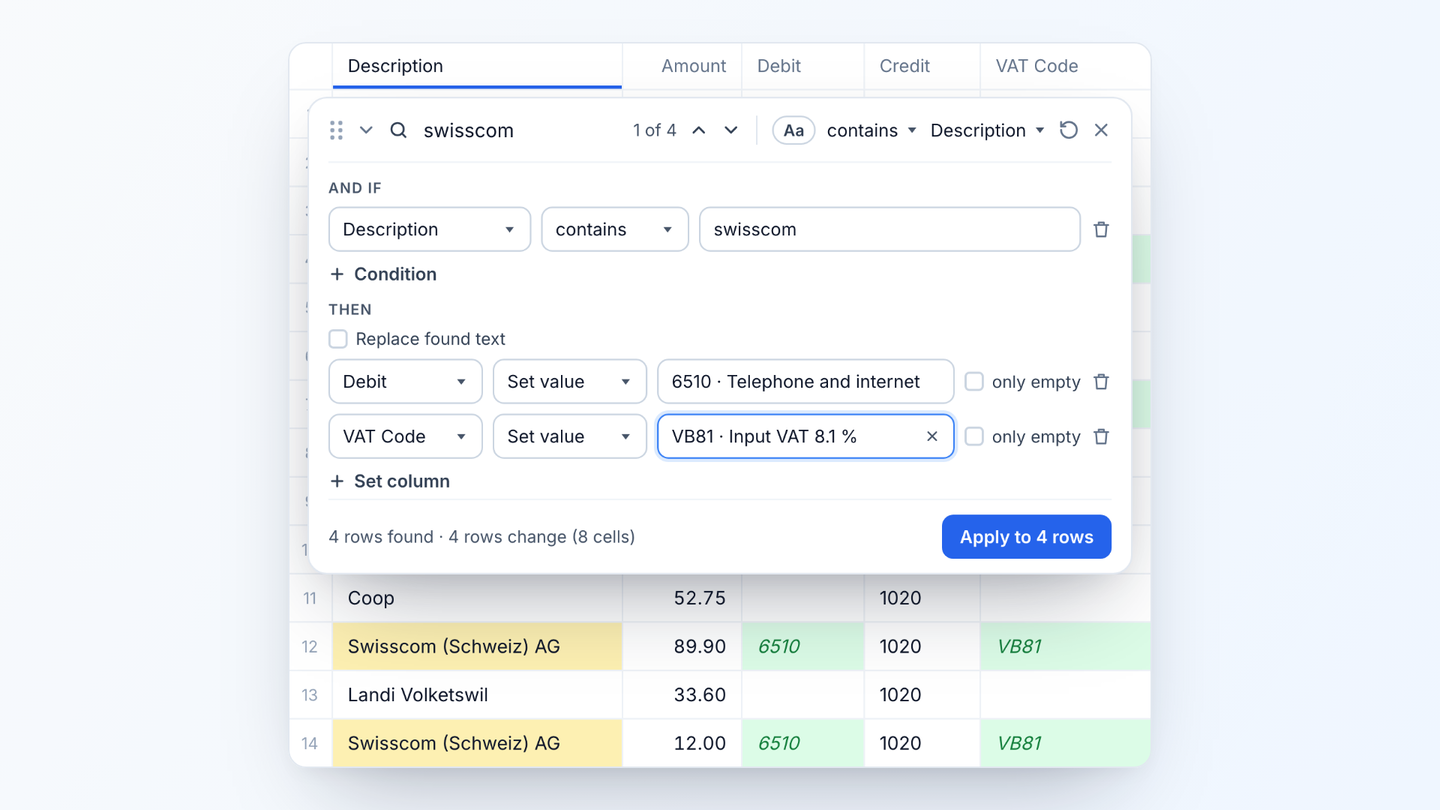
NewThe arrow in the search bar opens "Replace and set columns", where you change all matching rows at once: replace text, set a column to a value, build it from other columns or clear it. For example, all entries with "Swisscom" in the description get debit account 6510 and the matching VAT code, or you replace "September 2026" with "October 2026" in all position descriptions. "And if" narrows things down further, for instance to rows without a debit account. You pick accounts and VAT codes straight from your bexio. A preview shows every change beforehand, and "Undo" reverts them in one step.
- We have improved the validation and the error messages for invoice and entry imports.
- "Add exchange rates now" asks before overwriting existing rates and shows you where a rate is still missing. importly now fetches the monthly average rates every day.
- In the template editor for bank statements, the columns you combine into the description and document number appear as building blocks. The column picker can be searched by name or sample value.
September 3, 2026
Automatic saving and undo in the import tables
The import tables save automatically
New"Import entries" and "Import invoices" now behave like a spreadsheet: you no longer have to save. The table saves your changes by itself – a few seconds after your last input, and immediately when you switch browser tabs or windows. A cell you are still typing in is only committed once you leave it. The header always shows the current state, such as "Saved · 13:48:13", and "Start Import" only proceeds once everything is saved.

Multiple windows or devices no longer overwrite each other
NewIf you have the same table open in two windows or on two devices, they no longer overwrite each other. When a save happens elsewhere, the table is locked and you decide whether to load the new version or keep your unsaved changes.
Undo, redo and Escape
NewYou undo changes with Ctrl+Z and bring them back with Ctrl+Y, on the Mac with ⌘Z and ⇧⌘Z – or via the two arrow buttons in the header. This also applies to tools such as applying rules and to entire bank statement imports: Ctrl+Z after an import empties the table again, Ctrl+Y brings all rows back. The history is kept per window and starts over after reloading the page. And just like in Excel, Escape restores the previous value while you are editing a cell.
Sign-in goes straight to the company you used last
ImprovedIf you are already signed in, opening app.importly.ch takes you straight to the company you used last, without the login form flashing up briefly. The browser's back button no longer leads to the login page either.
- After a failed check when starting an import, you remove the red markers with "Remove error markers".
- The header of the import tables has been tidied up, and the name of the import now appears in the browser tab – handy when several imports are open.
- Password managers such as 1Password or Chrome now find the password change via the standard link /.well-known/change-password; /.well-known/security.txt lists the address for security reports.
August 27, 2026
New bank statement import and custom templates
Over 30 Swiss banks are recognized directly
Newimportly now reads bank statements directly in your browser and detects the format itself – from UBS, PostFinance and Raiffeisen across all cantonal banks, Migros Bank, Valiant and Cler to Twint, Swisscard, Viseca, Neon and Yuh. Add to that camt.052, camt.053 and camt.054 according to ISO 20022, plus Wise and Revolut. You simply drag the file onto the entries table; importly shows you the recognized formats sorted by how well they match, the best one on top.
Custom templates for any other format
NewIf importly doesn't know a format yet, you build your own template in a few clicks. A table maps importly's columns – Document Number, Date, Description, Amount, Debit, Credit, VAT – to the columns of your file, each with a sample value. importly detects the date and number format automatically and only asks when it is genuinely ambiguous. There are no required fields: whatever you don't map stays empty. Saved templates are recognized automatically with your next statement and can be renamed, edited and deleted.

Search accounts and VAT codes right in the table
NewThe debit and credit accounts now have a searchable picker with account number and name, and the VAT column a picker with the active VAT codes from bexio. For the VAT account, importly suggests the row's two accounts as soon as debit and credit are set.

Load new accounts from bexio
NewIf you created new accounts or VAT codes in bexio, you fetch them right away via "Update accounts" in the Settings menu – without recreating the import.

Delete your account yourself
NewUnder Settings › Account settings you can now delete your account completely yourself. We remove your data from all systems and revoke the bexio connections. Invoices are kept due to the statutory retention obligation.
5000 instead of 500 rows per import
ImprovedAn entries import can now contain up to 5000 rows – ten times the previous limit.
- The Swiss Federal Customs Administration publishes the monthly average rates around the 25th for the following month. importly now fetches them two months ahead – so no exchange rates are missing at the start of a month.
August 18, 2026
Consistent number formats and flexible columns
Amounts land automatically in the Swiss number format
ImprovedWhen pasting, importly now also recognizes amounts with a thousands dot and decimal comma (105.840,50) or a thousands comma and decimal point (105,840.50) and converts them automatically to the Swiss number format — an apostrophe as the thousands separator, a point for the decimals (105'840.50). Tables now also display all amounts consistently in the Swiss format.

Import entries: show and hide the VAT columns
NewThe table for manual entries has a new "Settings" button. If you set up a table without VAT, you can show or hide the "VAT Code" and "VAT Account" columns there afterwards. Values you already entered are kept and reappear as soon as you switch VAT back on.

Import invoices: add columns afterwards
NewIf columns are missing from a table you already created, you can now add them afterwards: via "Settings" you show or hide the "Contact Person", "House Number", "Country", "Due Date" and "Unit" columns at any time.

July 17, 2026
app.rombro.ch becomes importly.ch
A new name, a new home
NewOur app is now called Importly: app.rombro.ch has become app.importly.ch, and you can find our website at importly.ch. What started as a side project of the accounting practice has grown into a standalone app — with a name that is short, clear and close to what we do.
A fresh design
ImprovedThe new name comes with a reworked look: a new logo, a new website and a cleaner, more modern interface for importing entries, invoices and bulk invoices into bexio.
- Links and bookmarks pointing to app.rombro.ch are redirected automatically.
- Your login, account, data and import history stay unchanged.
- All existing features remain supported and maintained.