
Import invoices into bexio Sales
Table of Contents
- 1. Register for free
- 2. Connect your bexio account
- 3. Create an invoice import
- 4. Copy invoices into the table
- Columns and order
- Contact assignment
- Invoices with one line item
- Invoices with several line items
- Invoices with negative line items
- Useful functions in the table
- 5. Specification of all columns
- Data formats
- 6. Start the import
- Important notes and limits
With our Import invoices module on app.importly.ch, you import sales invoices into bexio in one batch. You prepare the invoices in Excel, Google Sheets, a CSV file or another software and then copy them into the Importly table. This is especially helpful for businesses or associations that issue many invoices at once.
An additional benefit: if a contact does not yet exist in bexio, Importly creates it automatically during the import. This makes the whole import process much simpler and more efficient.
1. Register for free
If you do not yet have an account, register on app.importly.ch and complete your profile. After that, you are ready for your first invoice import.
2. Connect your bexio account
Connect your bexio account with Importly: in the account selection at the top right, click Create new connection, sign in to bexio and confirm access for the company you want. You can connect as many bexio accounts as you need with app.importly.ch and switch between them at the top right.
3. Create an invoice import
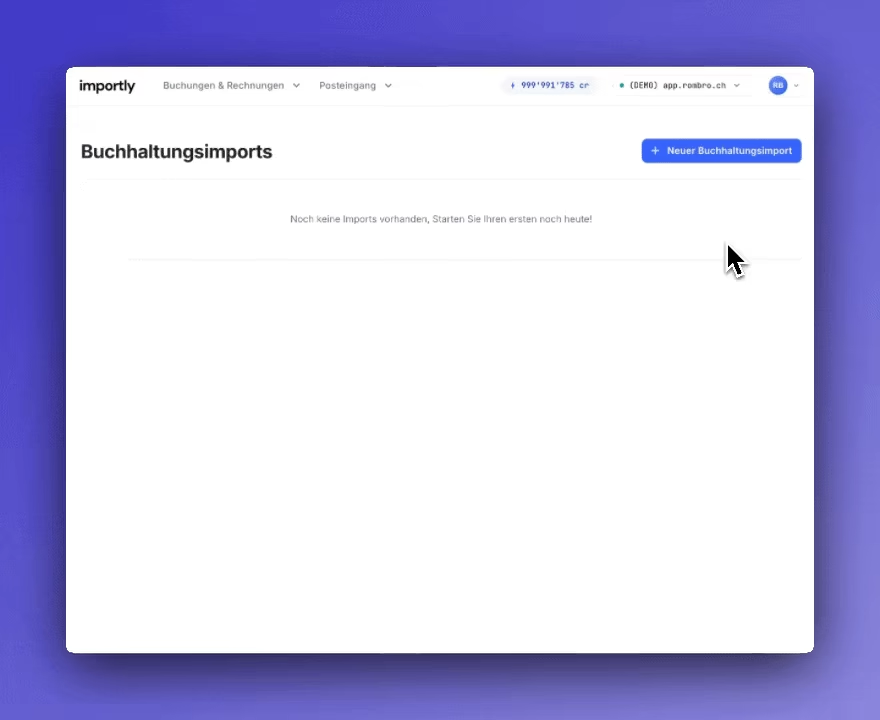
At the top right, choose the bexio account into which the invoices should be imported. Then open the Import invoices module under Bookings & Invoices and click New Invoice Import. In the dialog you set:
- Name: any name, e.g. “Membership fees 2026”.
- Invoice State: With
Open, the invoices are issued directly in bexio and get the status “Open” there. WithDraft, they remain drafts in bexio that you can check and then issue yourself. The invoice state applies to all invoices of the import and cannot be changed after creation. - Additional Fields: additional columns such as
Due Date,ReferenceorCurrency(all columns are listed in section 5). You can show or hide them at any time later viaSettings→Columns.
Importly remembers the invoice state and the additional columns per bexio account as the default for your next import.
4. Copy invoices into the table
The Importly table works like a spreadsheet: copy the data from Excel, Google Sheets or a CSV file and paste it with Ctrl+V (Mac: Cmd+V). Every change is saved automatically.
Columns and order
When you paste, the table fills in the values from left to right, starting at the selected cell. Your source data therefore needs the same columns in the same order as the Importly table – including the additional columns you have shown. So show the additional columns you need first and then arrange your source data accordingly. Alternatively, paste individual columns separately. You will find the complete order in section 5.
Templates with the standard columns in the right order (CSV, Excel and Google Sheets) are available in bexio invoice import template (Excel, CSV, Google Sheets).
Contact assignment
For each invoice, you specify the contact in one of two ways:
- Existing contact (recommended): Enter the contact’s number from bexio in
bexio Contact noand leave the other contact columns fromContact typetoEmailempty. Importly takes the name and address from bexio. If they are filled in anyway, the validation reports an error. - New contact: Leave
bexio Contact noempty and fill in at leastContact typeandName_1, ideally also the address and email. Importly creates the contact in bexio during the import.
This is how Importly avoids duplicate contacts: if Contact type, Name_1, Name_2, Postal Code, City and Email match an existing bexio contact exactly, Importly uses that contact instead of creating a new one. If even one of these fields differs – including an empty field, e.g. a missing email address – a new contact is created. If the same new contact appears several times in the table, Importly creates it only once. Existing contacts are never changed.
Spot-check the imported invoices and contacts in bexio.
Invoices with one line item
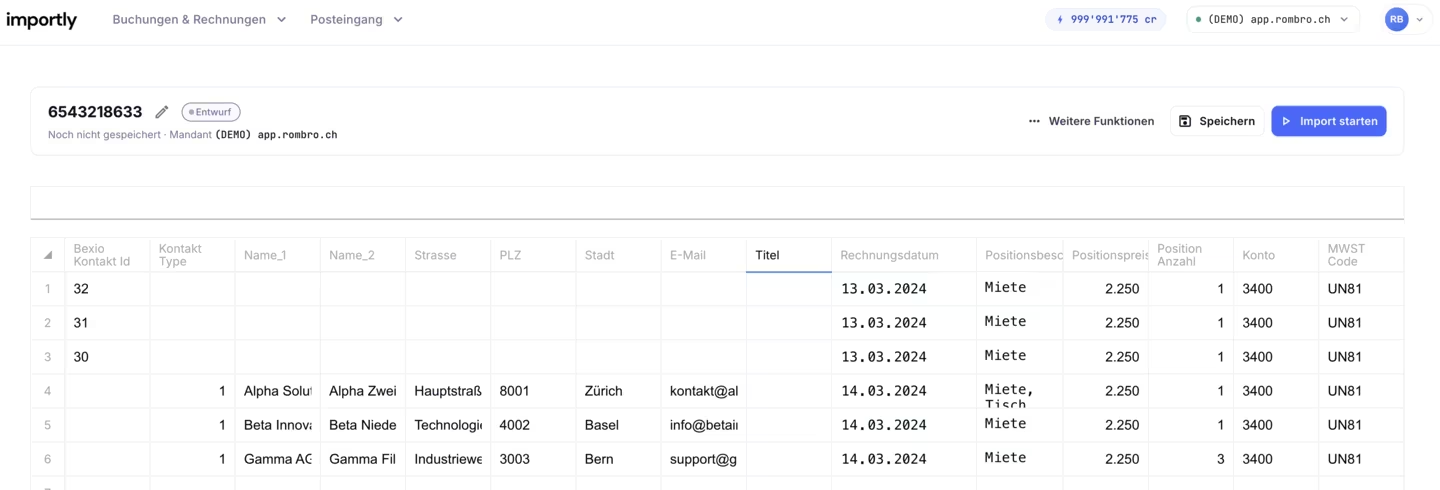
A row with a contact and an Invoice Date starts a new invoice. The columns Position Description to Tax rate of this row form the first line item. If each invoice has only one line item, each row corresponds to one invoice, and you can copy your invoices directly into the table.
Invoices with several line items
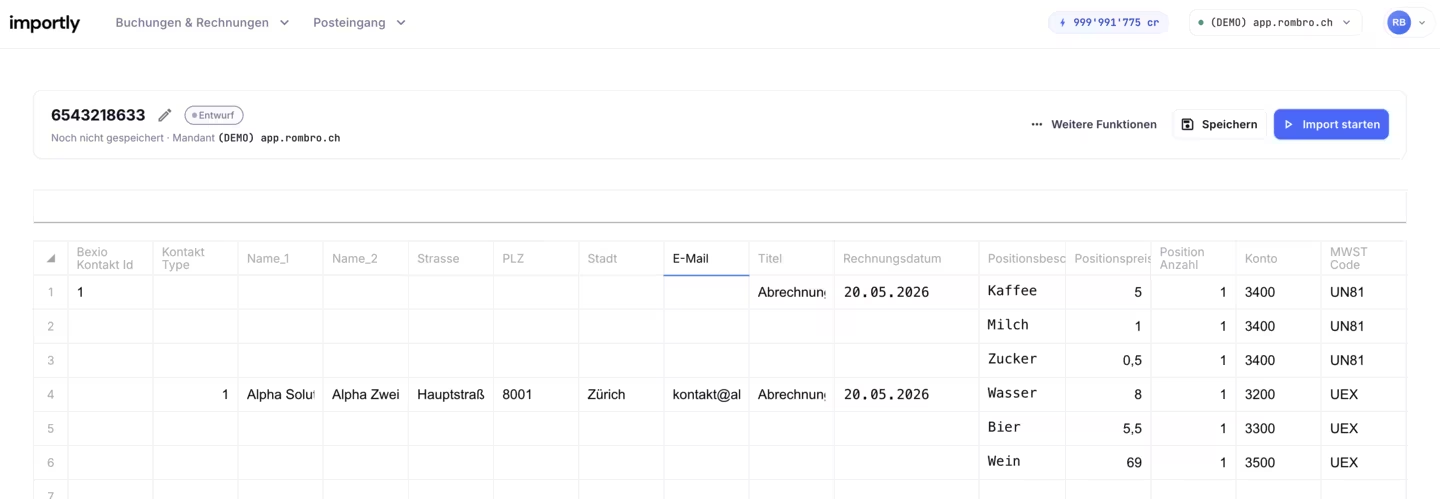
You enter further line items in the rows directly below the invoice row. In these line item rows, you only fill in the columns from Position Description to Tax rate. All columns to the left – from bexio Contact no to Invoice Date, or to the last column you have shown before Position Description – stay empty. This is how Importly knows which line items belong to the invoice above.
Two rules help you check:
- If a row contains contact data (e.g.
bexio Contact no,Name_1orPostal Code) or anInvoice Date, a new invoice starts there. Contact Person,Title,Reference,Due Date,Currency,Bank account,LanguageandInternal contactapply to the whole invoice and belong only in the first row. In a line item row, the validation marks them as errors.
Invoices with negative line items
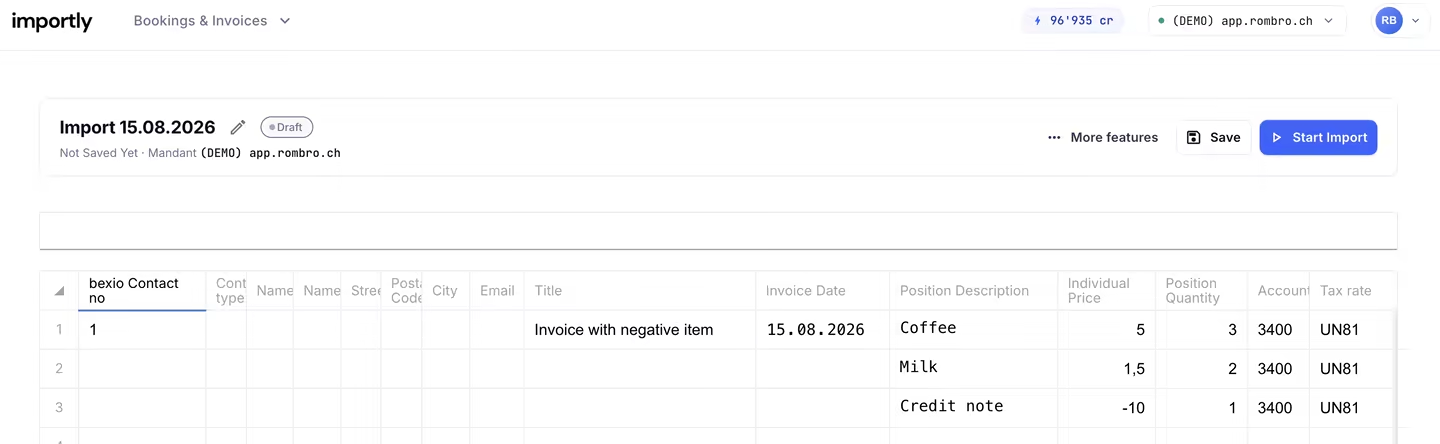
An invoice may also contain negative line items, for example a discount or a credit line. Enter the negative line as an additional line item row and use a negative value in Individual Price (e.g. -10). As with all further line items, all columns to the left of Position Description stay empty.
The minus sign always belongs in the Individual Price: the Position Quantity must be greater than 0; a negative quantity is not accepted during the import. For a percentage discount on individual line items, you can use the additional column Discount in % instead.
What matters is that the invoice total is at least 0.05 – after any discounts. Only individual line items may be negative. Invoices with a negative total are actual credit notes and cannot be imported – we explain why in Why credit notes cannot be imported into bexio.
Useful functions in the table
Ctrl+Z(Mac:Cmd+Z) undoes changes,Ctrl+Y(Mac:Cmd+Shift+Z) redoes them.- With
Ctrl+F(Mac:Cmd+F) you search the table, withCtrl+H(Mac:Cmd+Shift+H) you replace values or set columns in several rows at once. The article Search and replace before importing into bexio shows how. - In the
Position Description,Alt+Enter(Mac:Option+Enter) inserts a line break. WithCtrl+B,Ctrl+IandCtrl+U(Mac:Cmd+B,Cmd+I,Cmd+U) you format text in bold, italic or underline. This formatting is also kept when you paste text from Excel, Google Sheets or Word.
5. Specification of all columns
The table has 15 standard columns that are always visible and 11 additional columns. You choose additional columns when creating the import or later via Settings → Columns, as long as the import is a draft. Values in hidden columns are kept and reappear as soon as you show the column again. However, only visible columns are imported.
New: Since the end of September 2026, the columns
Reference,Currency,Bank account,Language,Internal contactandDiscount in %are also available. In addition, all additional columns can now be shown and hidden afterwards. Since October 2026, you can also format thePosition Descriptionin bold, italic and underline.
The overview lists all columns in the order in which they appear in Importly. Additional columns only appear when you show them. Importly only uses Contact type to Email when a new contact is created.
| Column | Example | Notes | Required |
|---|---|---|---|
bexio Contact no | 1023 | Contact number of an existing contact in bexio – not the technical ID from the browser’s address bar. Notations such as 1'023 are no problem. You can leave out leading zeros as long as only one contact matches. | Either this column or Contact type and Name_1 |
Contact Person (additional column) | 1024 | Contact number of a person from your bexio contacts who is stored as the contact person of the invoice. Only in the first row of an invoice. | No |
Contact type | 1 | 1 = company, 2 = person | Yes, without bexio Contact no |
Name_1 | Muster AG | Company name or, for people, the last name. Max. 80 characters. | Yes, without bexio Contact no |
Name_2 | Bern branch | For companies a name addition, for people the first name. Max. 100 characters. | No |
Street | Bahnhofstrasse | Without the additional column House Nr., the house number goes into this column too, e.g. Bahnhofstrasse 12a. Max. 70 characters. | No, unless House Nr. is filled in |
House Nr. (additional column) | 12a | Max. 10 characters. Via More features → Open street separation, Importly separates the house number from the street automatically. | No |
Postal Code | 8001 | No | |
City | Zürich | No | |
Country (additional column) | Switzerland | Country name exactly as it is set up in your bexio – no codes such as CH. If the name is unknown, the error message lists all countries in your bexio. | No |
Email | info@muster.ch | Valid email address | No |
Title | Invoice October 2026 | Title of the invoice in bexio. Max. 80 characters, no emojis. Only in the first row of an invoice. | No |
Reference (additional column) | Order 4711 | Fills the “Reference” field of the invoice in bexio. Max. 255 characters, a single line, no emojis. Only in the first row of an invoice. | No |
Invoice Date | 05.10.2026 | Must be within an open fiscal year in bexio. Starts a new invoice. | Yes, in the first row of an invoice |
Due Date (additional column) | 04.11.2026 | Must be after the invoice date. Empty: Importly does not send a due date, and bexio sets it according to its default settings. Only in the first row of an invoice. | No |
Currency (additional column) | EUR | Three-letter currency code that is set up in your bexio. Empty: the base currency of your bexio. bexio determines the exchange rate (see section 6). Only in the first row of an invoice. | No |
Bank account (additional column) | CH93 0076 2011 6238 5295 7 | IBAN (any notation, also QR-IBAN) or the exact name of an account in your bexio. The invoice and the QR-bill are made out to this account. If several accounts have the same name, enter the IBAN. Empty: the default account of your bexio. Only in the first row of an invoice. | No |
Language (additional column) | fr | Code (de, fr, it, en) or name (e.g. French). Empty: the contact’s language, otherwise the default language of your bexio. Only in the first row of an invoice. | No |
Internal contact (additional column) | anna.muster@company.ch | Printed on the invoice as “Contact person”: email address or full name of a bexio user or of a contact person without login. Empty: the bexio user with whom the connection to Importly was set up. Only in the first row of an invoice. | No |
Position Description | Repair of door and window | Text of the line item. Several lines are possible, also in bold, italic or underline. Max. 4000 characters – line breaks and formatting count towards this. No emojis. | Yes, in every row |
Individual Price | 1'500.00 | Unit price. May be negative (negative line item). Max. 6 decimal places. Importly does not send whether the price includes or excludes VAT – bexio applies its default setting. | Yes, in every row |
Unit (additional column) | pcs | Name of a unit from your bexio, spelled exactly the same (including upper and lower case). If the name is unknown, the error message lists all units in your bexio. | No |
Position Quantity | 2 | Quantity, greater than 0. Max. 6 decimal places. | Yes, in every row |
Discount in % (additional column) | 10 | Percentage discount on this line item. Enter it as a positive number from 0 to 100, e.g. 10 for a 10% discount; max. 4 decimal places. The validation rejects negative values (i.e. surcharges). Enter a deduction of a fixed amount as a negative line item. | No |
Account | 3400 | Number of an active revenue account from your bexio chart of accounts. | Yes, in every row |
Tax rate | UN81 | VAT code from your bexio. It must be active, valid on the invoice date and match the VAT accounting method (see below). | Yes, in every row – even if you are not subject to VAT |
About the VAT code (column Tax rate):
- Which codes are allowed depends on the VAT accounting method set in bexio for the year of the invoice date: with the effective method, among others the sales tax codes such as
UN81; with the net tax rate method, among others the net tax rate codes. - If you are not subject to VAT, every line item still needs a code without VAT (0 %). This is usually
UEX– in a French-language bexio it is calledCEX, in an Italian-language oneCE. - Codes with a tax rate such as
UN81are the same in every language. Other codes depend on the language of the bexio user with whom the connection to Importly was set up. - If the code is empty or not allowed, the error message lists the codes in your bexio that fit the invoice date.
Data formats
- Date: The table recognises the usual notations, e.g.
05.10.2026,5.10.26,2026-10-05or5 October 2026. For dates with slashes such as03/05/2026, Importly takes the order from the pasted column or from Excel or Google Sheets, otherwise from your browser settings. An invalid day such as31.02.2026is not accepted as a date. - Numbers: The table recognises Swiss, German and English notations, e.g.
1'500.50,1.500,50or1,500.50. When you paste, Importly reads the whole column together: if1.500is next to2.750,00, the point is a thousands separator (1’500); next to12.50, it is a decimal separator (1.5). Excel, Google Sheets and LibreOffice also pass on the actual cell value. A single1.500or1,500without any further clues is read according to your browser’s number format. A notice then appears above the table, e.g. ““1.500” was read as 1.5”, andRead as 1'500switches all affected cells with one click. The same rule applies when typing. Currency signs such asCHFare removed automatically. - Text: Leading and trailing spaces as well as invisible characters (e.g. from PDF documents) are removed automatically during the import.
6. Start the import
The table saves every change automatically. You can therefore leave it at any time and continue the import later.
Use the Start Import button to start the import. Each invoice row, together with the line item rows below it, is created as one sales invoice in bexio. This is what happens:
- Notices before the import: Depending on your data, Importly first shows a notice that you confirm with
ContinueorStart import anyway, or end withCancel. In that case the import stays a draft.- Foreign currency: bexio converts invoices in a foreign currency with its own rate – with the monthly average rate if this is activated in bexio, otherwise with the fixed rate from your currency settings. If no rate is stored, bexio converts 1:1. Importly cannot send its own rate.
- Language: bexio has no invoice template for Spanish, Portuguese, Chinese and Japanese. The labels on the invoice are then printed in German.
- Decimal places: bexio calculates with the exact values but prints quantities and prices rounded according to your invoice format (default: 2 decimal places). You can change the format in your bexio invoice settings.
- Validation: Importly checks all invoices and contacts against your bexio.
- If the validation finds errors, the import stays a draft, and the affected cells are marked in red. Click a red cell to see the error message in the
Fix Errorbox, correct the value and start the import again. - If automatic numbering for invoices is switched off in bexio, “Invoice settings incorrect” appears.
- If you do not have enough credits, “Not enough credits” appears. In both cases the import stays a draft.
- If the validation finds errors, the import stays a draft, and the affected cells are marked in red. Click a red cell to see the error message in the
- Import: Importly first creates the new contacts, then the invoices. With the invoice state
Open, the invoices are issued directly in bexio. - Result: After the import, the
bexio IDcolumn shows a link to each invoice in bexio. If an invoice failed, thebexio Statuscolumn shows “failure”. Check these invoices in bexio before you import them again, so that no duplicates are created.
Important notes and limits
- Row limit: By default, up to 500 rows are possible per invoice import, with the Business subscription up to 2000. Rows are counted, not invoices – each line item takes one row. Split larger volumes across several imports.
- Credits: One credit is used per invoice line item, i.e. per row. Newly created contacts do not cost extra.
- Automatic numbering: Automatic numbering for invoices must be activated in bexio.
- Contacts: Existing contacts are not updated. A new contact is not created twice if
Contact type,Name_1,Name_2,Postal Code,CityandEmailmatch an existing contact exactly. - Amounts: Individual line items may be negative, as long as the invoice total is at least
0.05. Credit notes cannot be imported. - VAT: The
Tax ratecolumn is always required, even if you are not subject to VAT. In that case, use the code without VAT, usuallyUEX(in a French-language bexioCEX, in an Italian-language oneCE). - QR-bill: For the
Payable bysection to appear on the QR-bill, the contact needs a country. For new contacts, fill in the additional columnCountry. bexio only creates a QR-bill for invoices in CHF or EUR to a Swiss or Liechtenstein account. - Separate house numbers: Via
More features→Open street separation→Separate Street Numbers, Importly automatically splits combined details such as “Hauptstrasse 123” intoStreetandHouse Nr.. If the additional columnHouse Nr.is still hidden, Importly shows it in the process. - Language: The introduction and closing text only appear on the invoice if you have set them up in bexio for the selected language.
Tip: Test a new table first with two or three invoices with the invoice state
Draftand check them in bexio: amounts (including or excluding VAT), texts, due date and contacts. Then import the rest with the invoice state you need.