
Search and replace before importing into bexio
Table of Contents
In the tables of Import entries and Import invoices on app.importly.ch, you search and replace just like in Excel or Google Sheets. This lets you clean up your data right before importing it into bexio: replace text in many cells, set a column in all matching rows at once, or change only specific rows.
You see every change in a preview first, and Undo reverts it in one step.
1. Search
Open the search with Ctrl+F (Mac: Cmd+F). A search bar appears above the table. Importly highlights and counts all matches. Press Enter to jump to the next match and Shift+Enter to go back to the previous one.
In the search bar, you can narrow down the search:
Aa: match case.- Match:
contains,entire cell,starts withorends with. - Column: search in
All columnsor only in a specific column. In selection: If you select several cells before opening the search, Importly only searches within them. Click thexon theIn selectionchip to remove the restriction again.
The search also finds numbers and dates written differently: 1.234,50 finds 1'234.50, and 1.3.25 finds 01.03.2025.
If the search bar covers your data, you can move it; double-clicking the handle puts it back. Press Esc to close it.
2. Replace and set columns
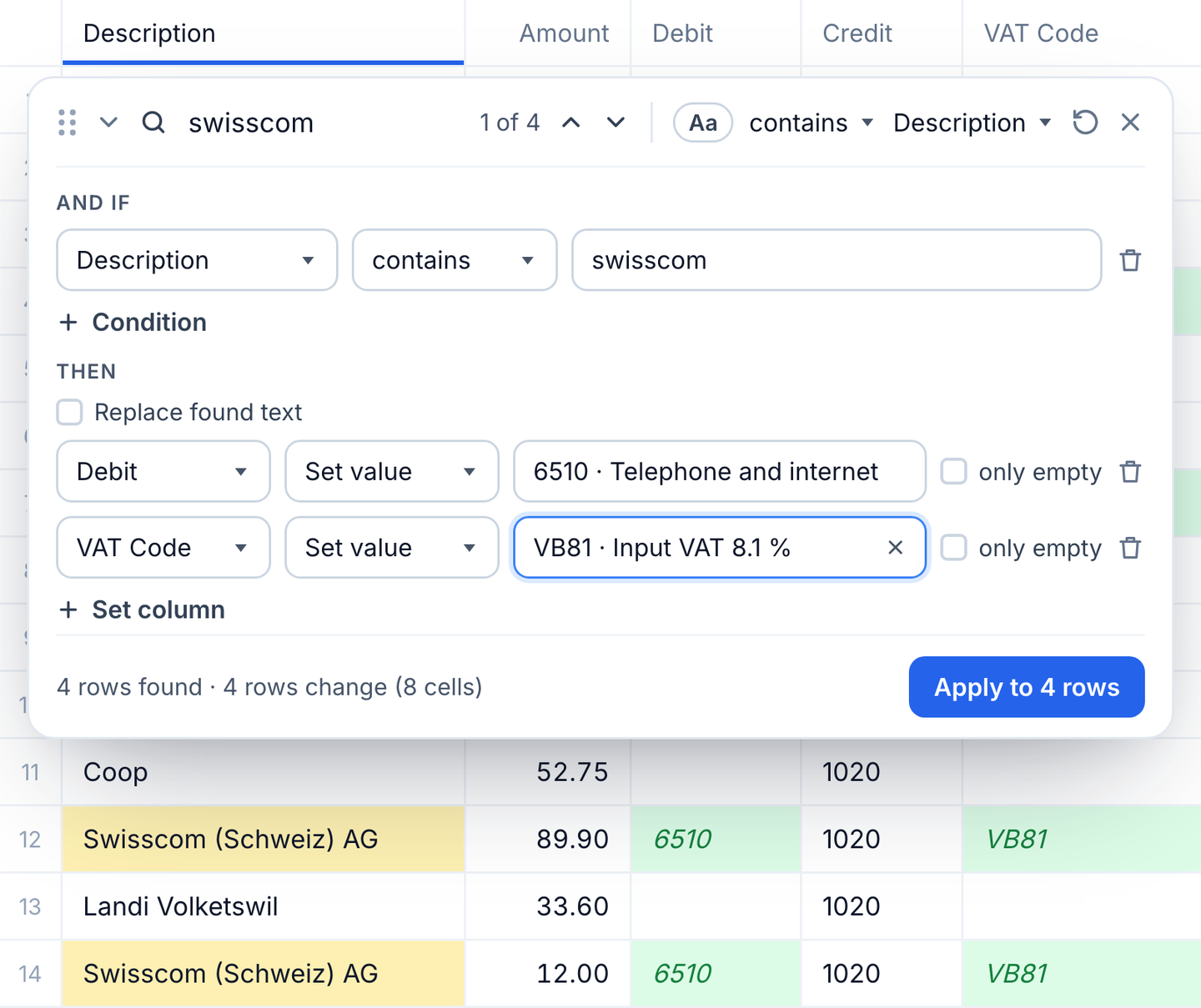
Open replace with Ctrl+H (Mac: Cmd+Shift+H) or via the arrow at the front of the search bar (Replace and set columns). The sections And if and Then appear below the search bar.
Which rows change
The search term determines which rows are affected. Under And if, you add further conditions with Condition. Each one checks a column – or Any column – with contains, entire cell, starts with, ends with, is empty or is not empty. A row only counts if all conditions apply.
You can also work without a search term and select rows by conditions only, e.g. all rows where Debit is empty.
What changes
Replace found text: Tick the box and enter the new text. Importly only replaces the text that was found; the rest of the cell stays. If you chooseSet whole cell toinstead, the entire cell content is replaced. This requires a search term.Set column: changes a column in all rows found – including a column other than the one you searched in. You choose the column and the action:Set value: a fixed value, e.g. an account, a date or an amount.From columns: text combined with values from other columns of the same row, e.g.{Document Number} {Description}. You pick the columns from a list that appears as you type.Clear: empties the column.- With
only empty, you only fill cells that are still empty; existing values stay.
You can replace text and set several columns in the same step. In Import entries, you choose accounts and VAT codes directly from your bexio.
3. Preview, apply, undo
As soon as rows are found and an action is defined, the table shows the new values as a preview. Below, you see how many rows were found, how many change and how many existing values are overwritten.
Replacechanges only the current match and jumps to the next one – handy for checking matches one by one.Apply to … rowschanges all rows found at once.- Afterwards, Importly reports how many cells have changed.
Undo– orCtrl+Z(Mac:Cmd+Z) – reverts the whole step.
Values that do not fit a column (e.g. text in an amount column or an invalid date) stay unchanged, and Importly shows a notice. All changes are saved automatically, like any other input.
4. Examples
Update line item descriptions to the new month
In Import invoices, all line items should say “October 2026” instead of “September 2026”:
- Open replace with
Ctrl+Hand enterSeptember 2026as the search term. - Tick
Replace found textand enterOctober 2026. - Check the preview and click
Apply to … rows.
Formatting such as bold or italic in the Position Description is kept.
Set the title only in the invoice rows
In the invoice import, details such as Title, Reference or Due Date belong only in the first row of an invoice. In line item rows, the validation marks them as errors. This is how you set the title only where an invoice starts:
- Press
Ctrl+Hwithout entering a search term. - Under
And if, add the conditionInvoice Date–is not empty. This selects exactly the invoice rows. Set column→Title→Set value→Invoice October 2026.- Click
Apply to … rows.
Set the account for recurring entries
In Import entries, all entries with “Swisscom” in the description should get the debit account 6510, unless one is already set:
- Press
Ctrl+H, enterSwisscomas the search term and chooseDescriptionas the column. - Under
And if, add the conditionDebit–is empty. Set column→Debit→Set value→ choose account 6510 from the list. With a further action, you set the matchingVAT Codein the same step.- Check the preview and click
Apply to … rows.
5. Keyboard shortcuts
| Action | Windows | Mac |
|---|---|---|
| Open search | Ctrl+F | Cmd+F |
| Next match | Enter, Ctrl+G or F3 | Enter or Cmd+G |
| Previous match | Shift+Enter, Ctrl+Shift+G or Shift+F3 | Shift+Enter or Cmd+Shift+G |
| Open replace | Ctrl+H | Cmd+Shift+H |
| Replace only the current match | Enter in the replacement field | Enter in the replacement field |
| Apply to all rows found | Ctrl+Enter | Cmd+Enter |
| Undo | Ctrl+Z | Cmd+Z |
| Close the search bar | Esc | Esc |
Good to know
- Values in replace: Importly checks new values according to the column, e.g. as a number or a date. It recognises numbers in the usual notations (e.g.
1'234.50,1,234.50or1.234,50) and dates e.g. as05.10.2026or2026-10-05. In replace, a single1.500or1,500is always read as 1.5 – for 1500, write1500or1'500. - One step, one state: All actions of a step read the row as it was before applying. The order of the actions therefore does not matter.
- Hidden columns: Importly only searches visible columns. If a condition refers to a hidden column, it finds no rows – show the column first.
- Finished imports: You can still search after the import. Replacing is no longer possible, because the import can no longer be changed.
You can find more about the tables themselves in the guides Import invoices into bexio Sales and Import entries - manual entry.